A comprehensive, visual walk-through. Click any screenshot image to open it in a sharp, full-sized popup viewer.
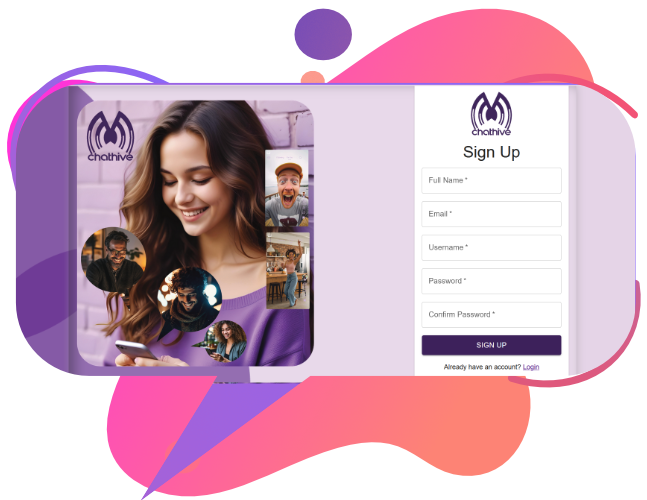
This is the landing page where you log into your mChatHive account. Get started instantly with single sign-on security measures built around your decentralized credentials.
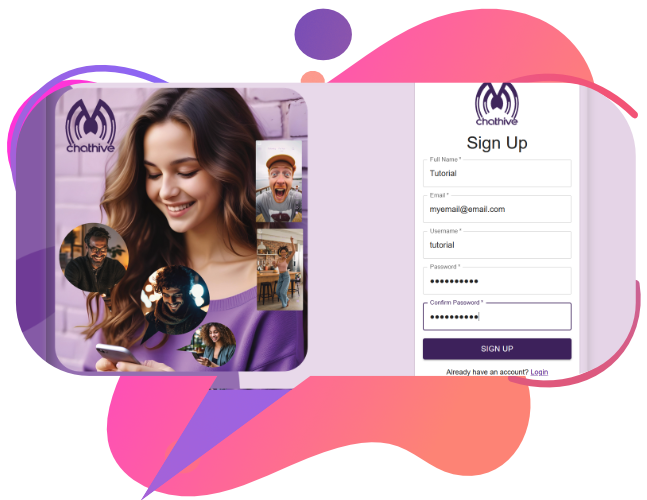
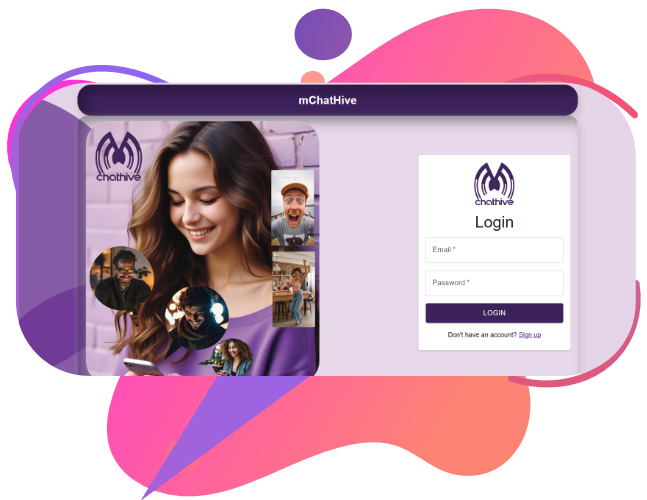
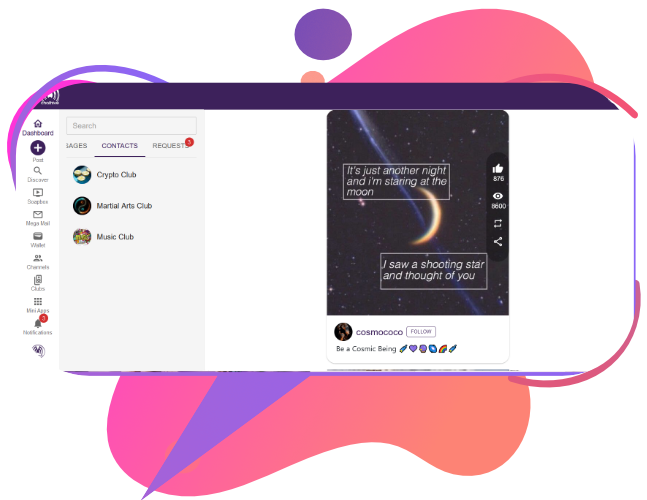
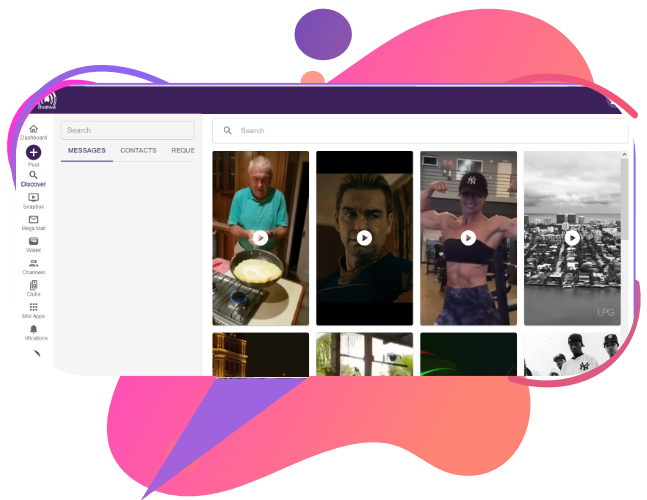
The Dashboard is your first stop once you sign in. You can see the left panel with all the features we will cover. Primarily, you will see your list of chats, contacts, requests, and Soapbox—the social media part of mChatHive, similar to Instagram and TikTok but with a few key privacy differences.

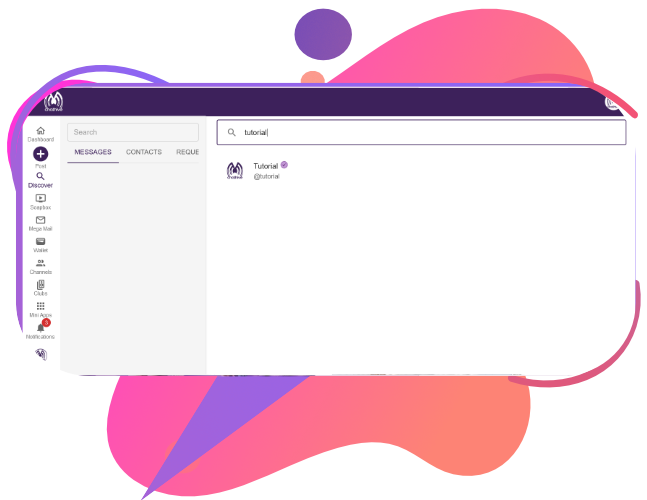
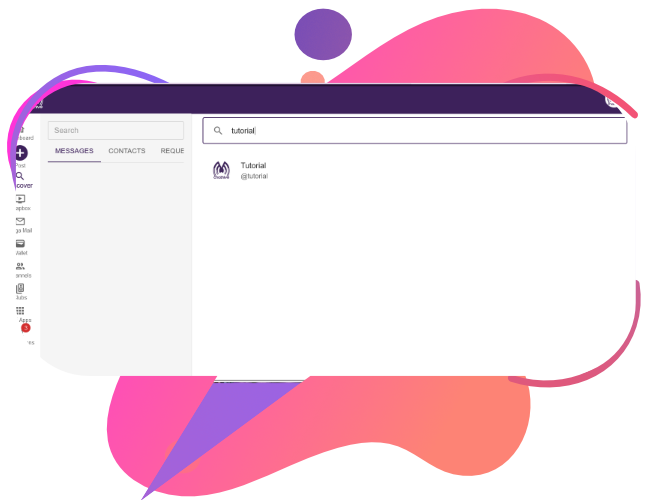
Press the magnifying glass, which is your discover area. This is where you can discover new Soapbox posts and members to connect with across the global system footprint.

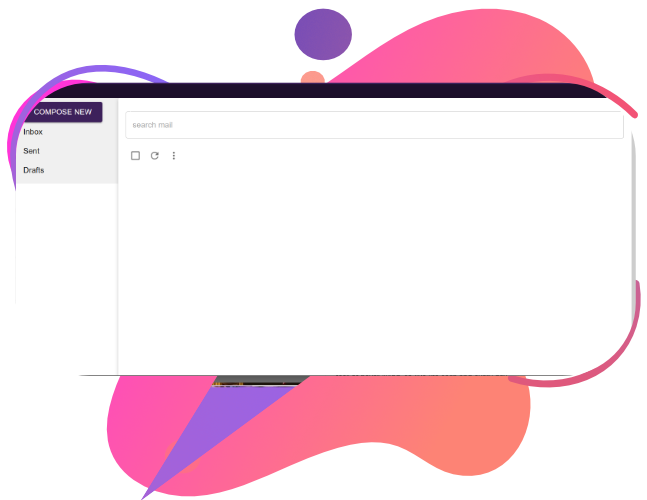
Press the MegaMail icon on the left panel to bring up your purely Peer-to-Peer email area. Mega Mail was specifically designed for privacy—only the two communicating parties can view the email once sent. No central SMTP servers are involved in hosting or duplicating your logs.
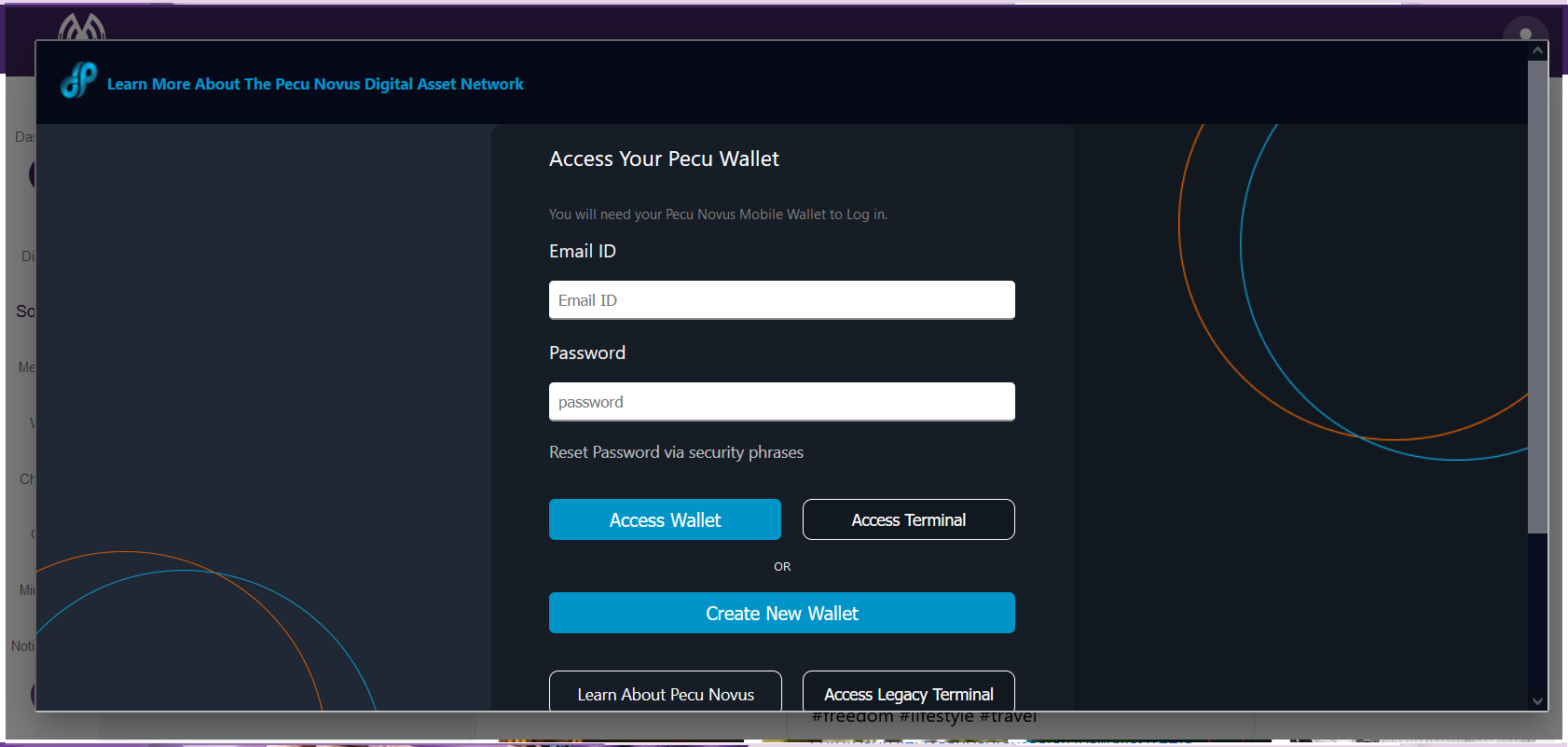
Press the Wallet icon on the left panel to bring up the secure login area for your Pecu Digital Asset Wallet. This is what will allow you to transfer tokens within mChatHive to other members and perform other decentralized digital asset transactions.
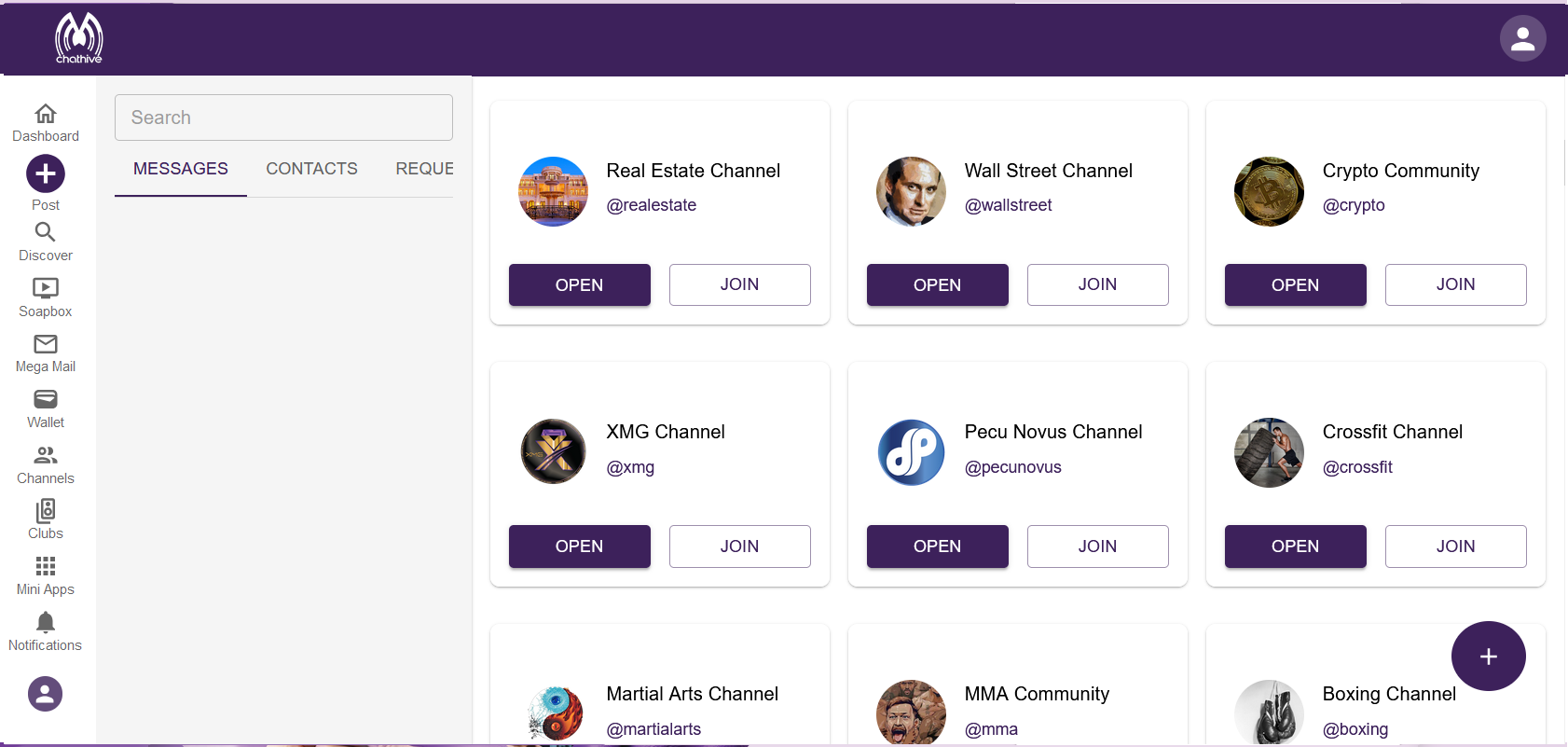
Press the Channels icon on the left panel to bring up the available Channels to join or create your own. Members can create a Channel to function like a private group chat for family and friends, or build a massive Channel similar to having a private mini Twitter "X" feed for a brand, business, or organization to build a captive, receptive, and loyal following. Create as many Channels as you want to manage!
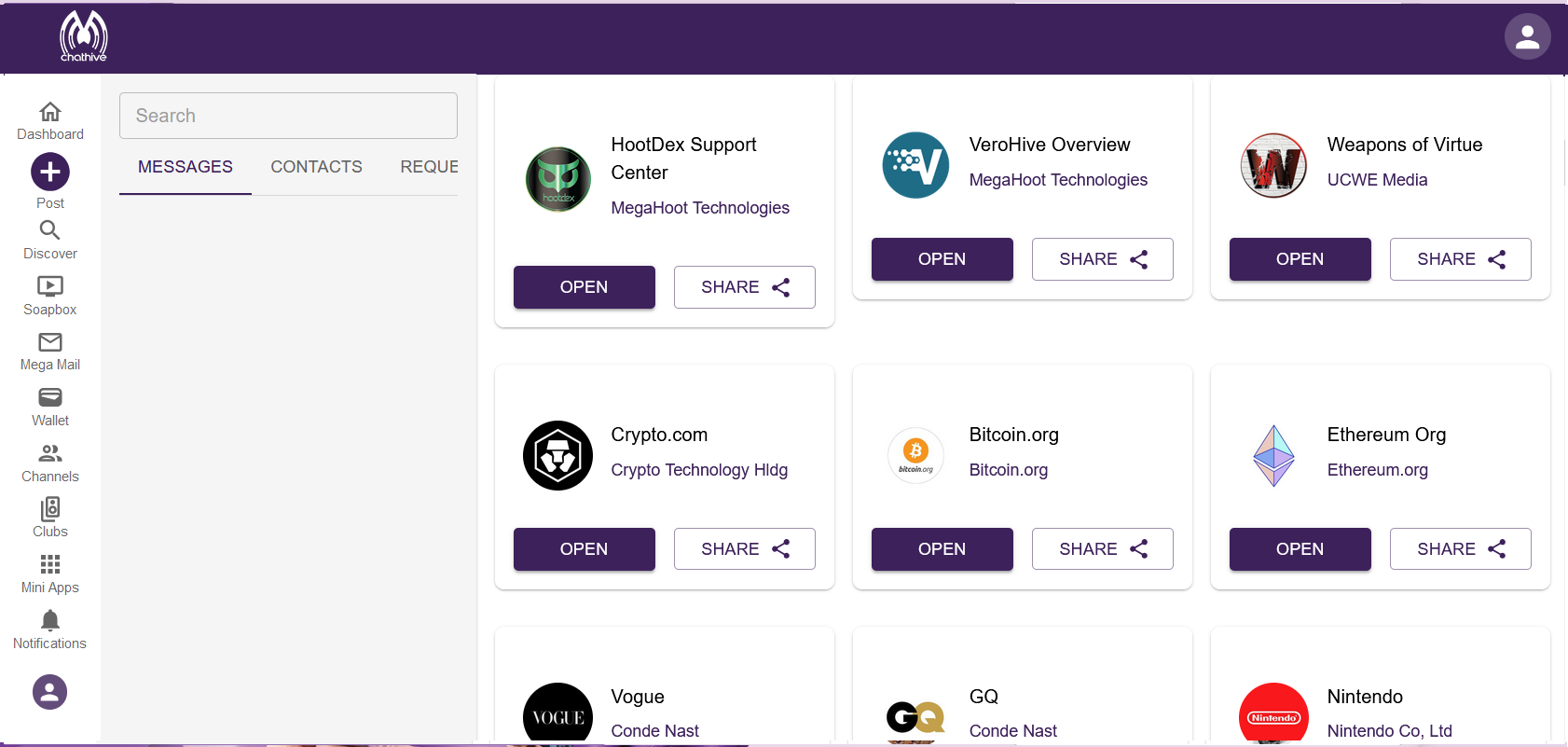
Press the Mini-Apps icon on the left panel to bring up the available Mini-Apps or request to add one of your own. Mini-Apps can either function like a fast web application, or brands can use the Pecu developer tools to build and deploy completely custom environments directly to the ecosystem.
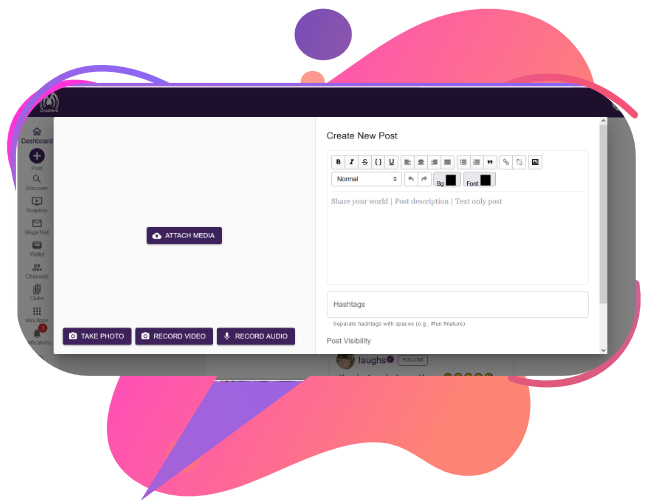
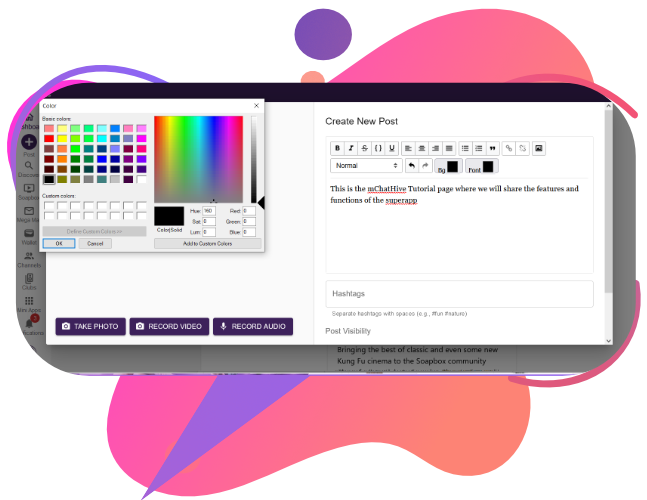
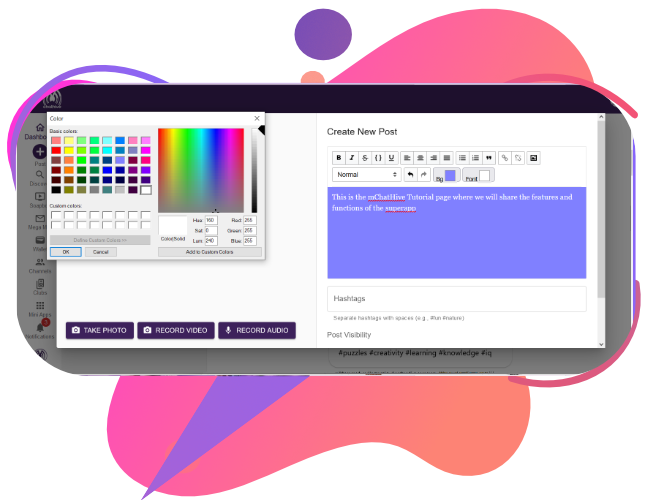
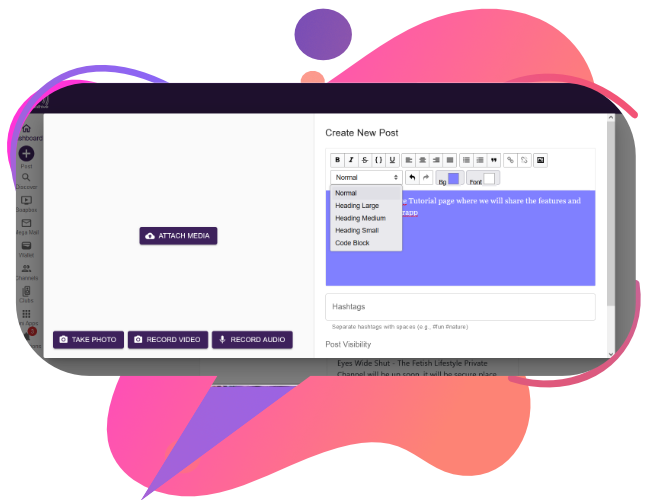
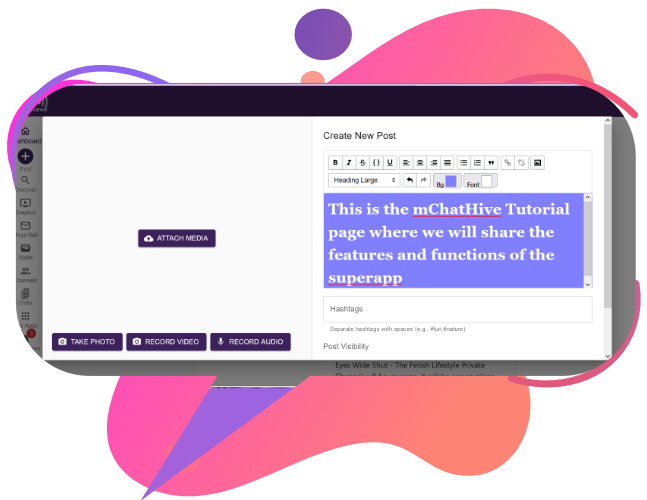
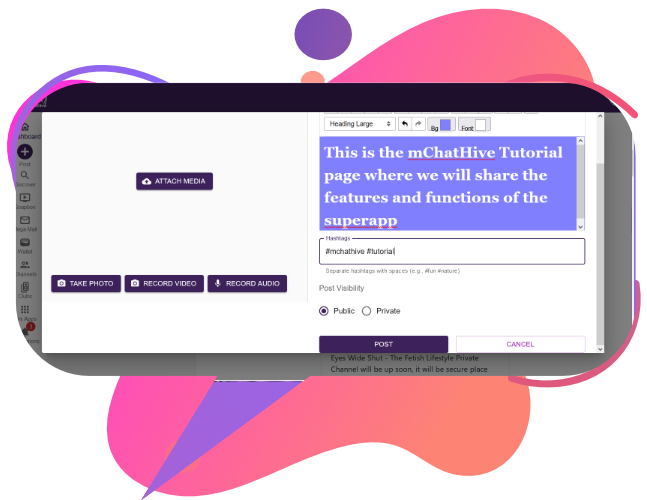
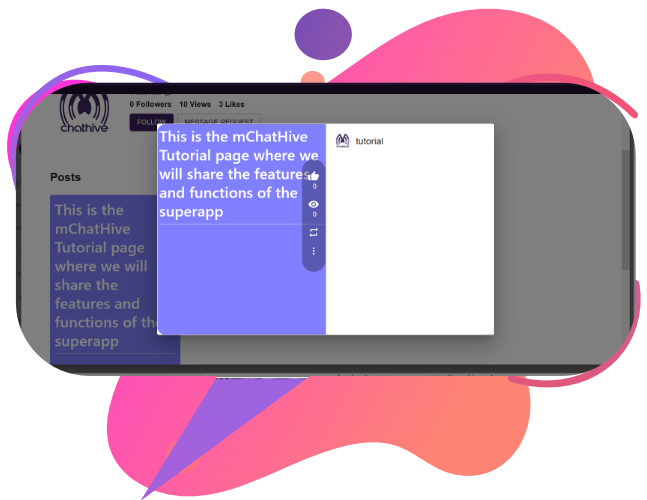
Press the PLUS icon on the left panel to bring up the posting panel. Here you can add video, images, and text posts, as well as hashtags and captions. Text posts can have a unique colored background and text styling that outputs as a clean image card—this is part of what makes sharing on mChatHive look so sharp and original.
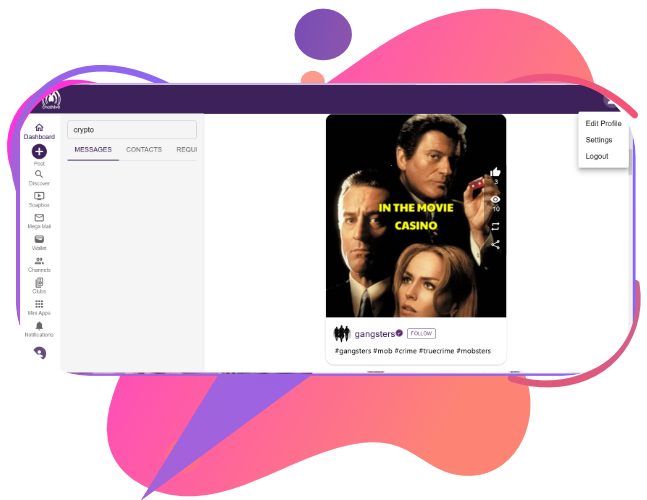
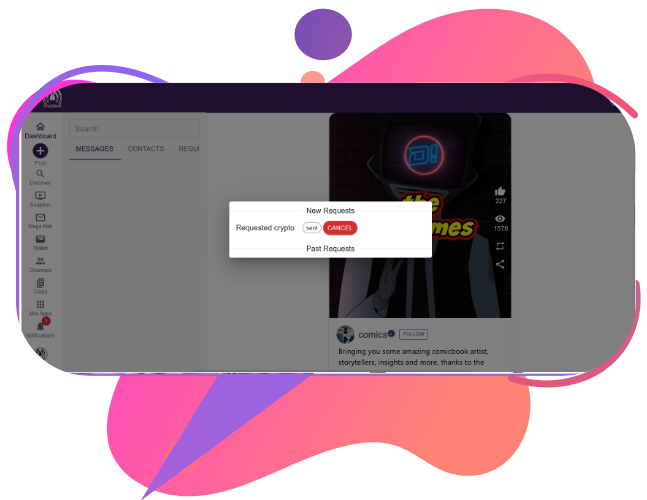
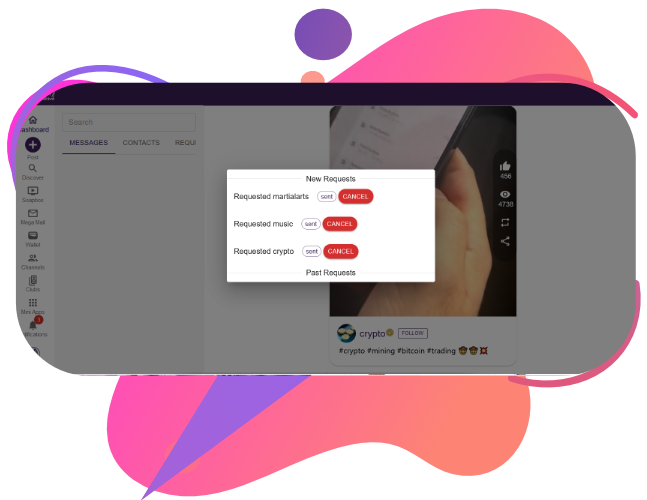
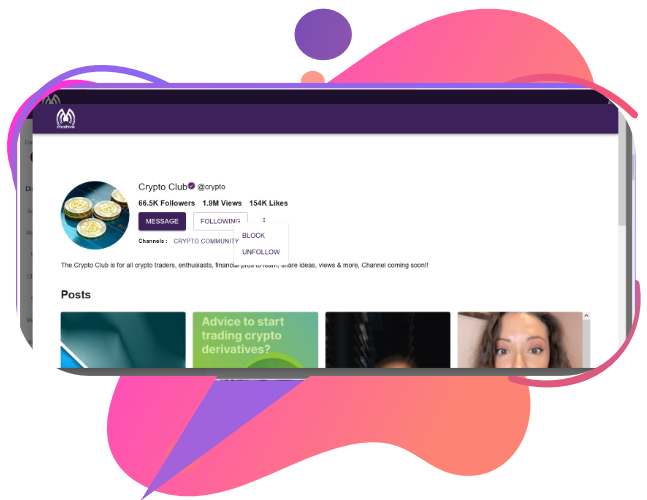
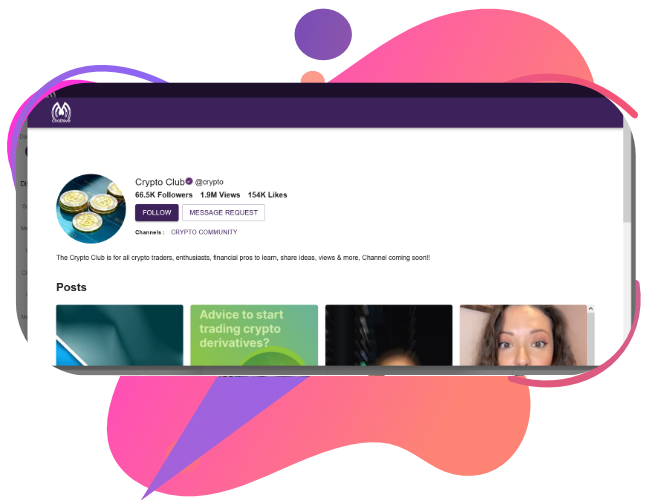
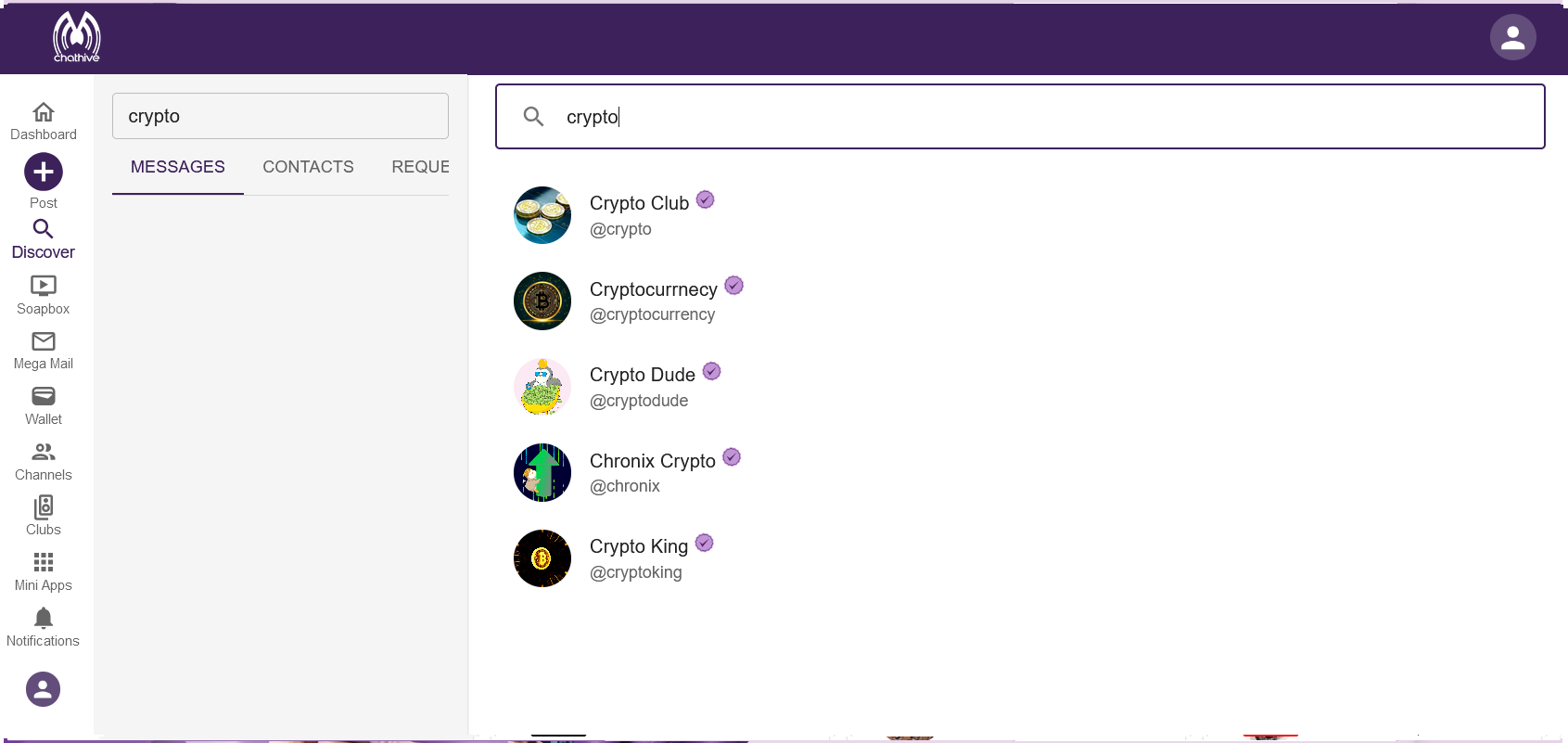
Go to Discover and search for those you want to follow and potentially communicate with. Simply following each other doesn’t allow for direct chats—a secure Message Request needs to be sent and accepted by the other member in order to communicate directly. You also retain full privacy options to unfollow or block users instantly if needed.